
ZeroBounce
Email VerificationVerifies email lists and provides tools for monitoring deliverability.
Useful when list cleaning and sender health belong in one workflow.
Explore ZeroBounce (opens in a new tab)
Read emails from pages you choose. Review the results, then copy or download them.
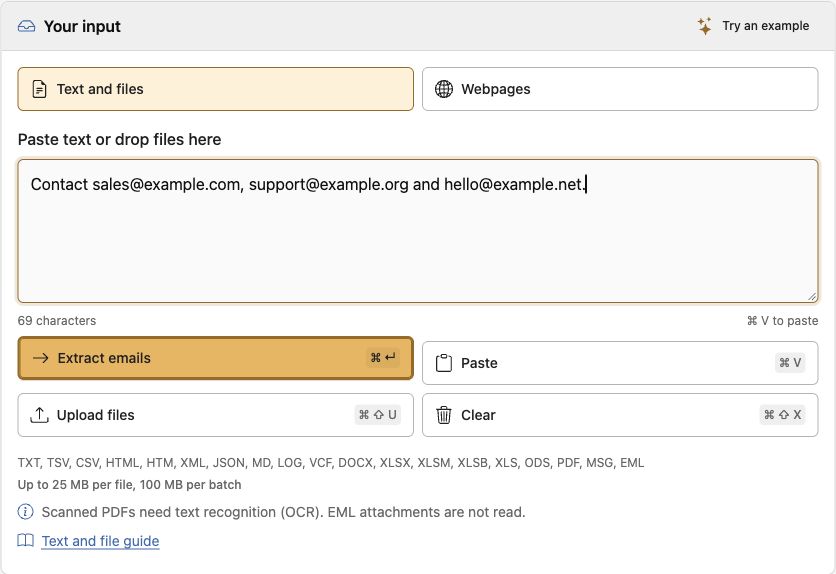
Paste text or upload a supported file. Click Extract emails, then review your results.
Enter public URLs and choose whether to follow important links. Allow downloading, then click Load webpages. Click Extract emails after loading.
Download and unzip the extension, then load its folder in Chrome or Edge. Open a webpage and click Read this page. Review saved emails, then copy or download them.
Article content and detailed guides remain in English. The selected language applies to controls and quick instructions.
Language is saved on this device. Email addresses, URLs and filenames are never translated.
Paste text or upload files, then extract email addresses. Your text and files are processed in your browser.
Up to 25 MB per file and 100 MB per batch. Remove a file with its × control. Clear removes the current text, files and displayed results. Saved History remains.
TXT, TSV, CSV, HTML, HTM, XML, JSON, MD, LOG, VCF, DOCX, XLSX, XLSM, XLSB, XLS, ODS, PDF, MSG and EML.
Scanned PDFs need text recognition first. EML attachments are not read. Legacy DOC and image files are not supported; export or convert them to a supported format.
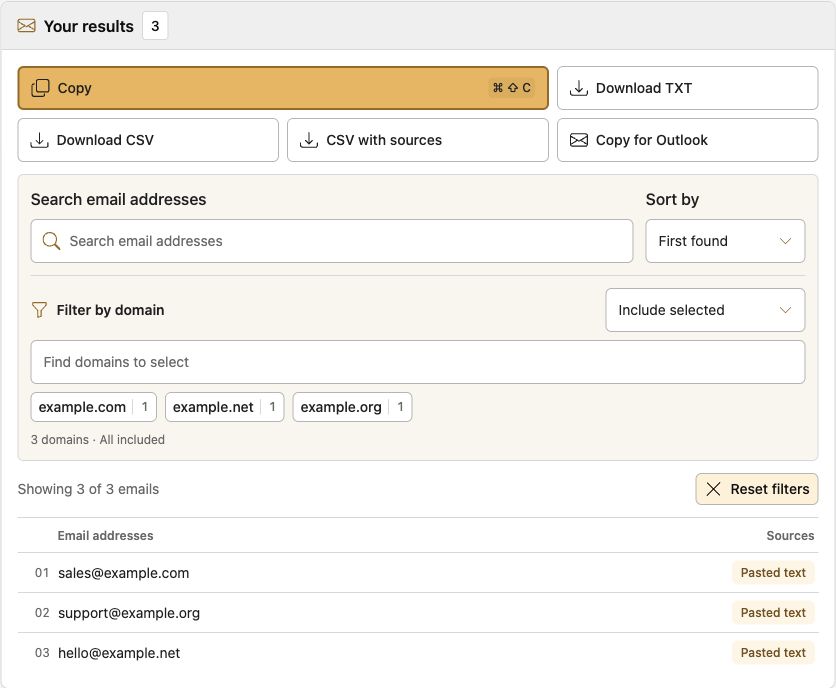
Copies and downloads use the current filtered list. Duplicate addresses are combined. Copy for Outlook separates addresses with semicolons.
When you change the input, choose Refresh results before exporting. Extraction finds address matches; it does not verify that a mailbox exists or that you have permission to contact it.
Successful extractions with emails are saved to History when browser storage is available. Open History to restore a list. The latest 30 lists are kept in this browser. Original files are not saved. Download anything you need to keep; browser storage is not a backup.
Have public URLs instead? Use the webpage loading guide. For a page open in Chrome or Edge, download and install the browser extension.
Check address validity before using your list.
Verifies email lists and provides tools for monitoring deliverability.
Useful when list cleaning and sender health belong in one workflow.
Explore ZeroBounce (opens in a new tab)Provides email verification for uploaded lists and connected workflows.
Useful for reviewing contact lists before a campaign.
Explore Bouncer (opens in a new tab)Provides email verification and tools for improving lead data quality.
Explore Clearout (opens in a new tab)Send newsletters and campaigns to people who opted in.
Create newsletters with publishing and audience growth tools.
Useful for publishers building a newsletter business.
Visit beehiiv (opens in a new tab)Add forms, landing pages and booking tools for new enquiries.
Create landing pages for campaigns and lead capture.
Useful when campaigns need dedicated enquiry pages.
Visit Unbounce (opens in a new tab)Build one-page sites with contact and signup forms on Pro plans.
Useful for a small landing page centered on one enquiry action.
Visit Carrd (opens in a new tab)