
ZeroBounce
Email VerificationVerifies email lists and provides tools for monitoring deliverability.
Useful when list cleaning and sender health belong in one workflow.
Explore ZeroBounce (opens in a new tab)
Download and unzip the extension, then load its folder in Chrome or Edge. Open a webpage and click Read this page. Review saved emails, then copy or download them.
Article content and detailed guides remain in English. The selected language applies to controls and quick instructions.
English is the default. Use the translation icon beside the theme button to choose a language.
Language is saved on this device. Email addresses, URLs and filenames are never translated.
The optional Chrome and Edge extension extracts email addresses from websites you have open, including ordinary webpages, online documents and supported spreadsheets. Copy or download your results. Free to use. No account or token required.
Some emails may be missed when content is hidden, unloaded, shown only in images, or blocked by the website. Check Reading details after each read.
Screenshots show version 1.7.10 in a local reader-window demo with sample emails.
This version is installed manually. It is not in an extension store yet. It reads pages you choose and saves email addresses, page URLs and titles in this browser on your device. See the Privacy policy.
chrome://extensions in Chrome or edge://extensions in Edge. Turn on Developer mode.manifest.json, not the ZIP file.Updating? Replace your previous extension files with the new version, then click Reload on the extensions page. Reopen the popup and confirm Version 1.7.10.
ZIP cannot be selected? Extract it first, then select the folder inside it that contains manifest.json.
Optional reference: Chrome’s official Load unpacked instructions.
For a longer read, open Reader window first. You can return to the website while it runs. Keep the reader open until it finishes.
Select text on the website first, then check Read only selected text. Or check Scan more loaded content to scroll and check more page content for up to 20 seconds. It restores your position and does not click pagination or other buttons.
In Google Sheets, click Read sheet tab. It tries the current tab’s permitted CSV export, up to 5 MB. If unavailable, it checks readable page text and reports partial coverage. Other sheet tabs are not read.
Across websites, only content the website makes readable can be checked. Hidden or unloaded content, text shown only in images and addresses behind buttons may be missed. Try Scan more loaded content, or use an allowed export in the main extractor’s Text and files tab.
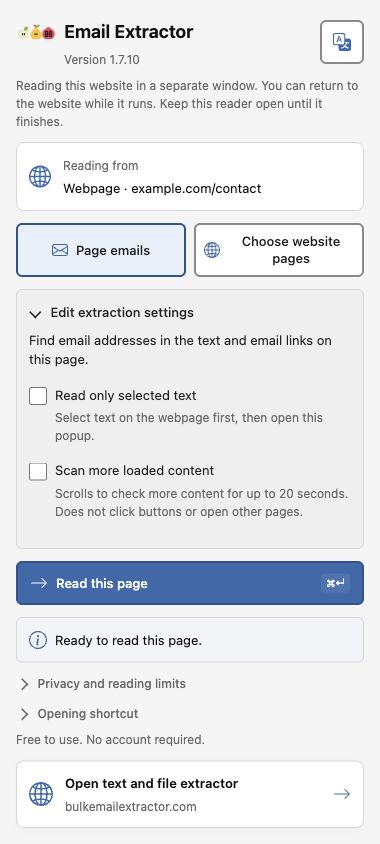
25 pages total: the current page plus up to 24 linked pages. Accessible embedded pages count toward the same limit and reduce the number of links you can select. Links to other websites are excluded.
Linked pages use downloaded text. Their scripts do not run, and other pages or app views are not opened automatically. Restrictions may stop a read before the limit.
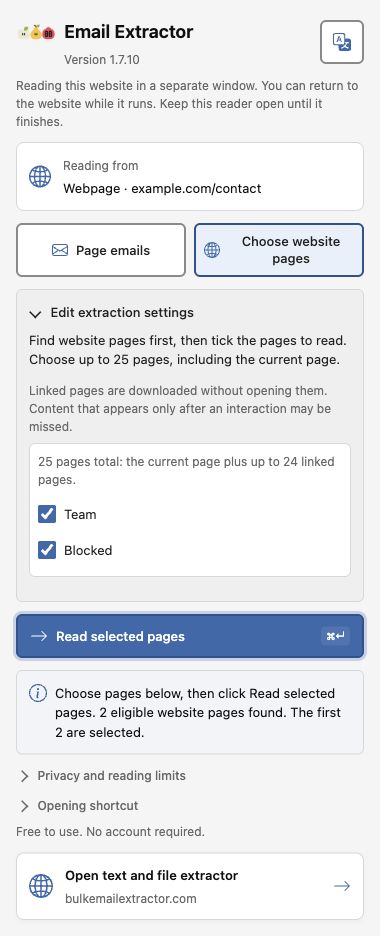
Emails are saved in this extension on this device. The source website can be closed when you search, copy, download or delete them. Open a website to start a new read.
Green confirms saving or copying. Amber means partial coverage or no matches. Red means an error. These states do not verify mailbox existence or deliverability.
Clear the search to copy or download the whole list. Page sources shows where the saved emails came from.
Add to saved emails is checked when you already have a list. It merges results and removes duplicates. Uncheck it to replace the list. Up to 25 page sources are retained. Download a separate copy before replacing a list you want to keep.
Delete all saved emails deletes the whole saved list, even with a search active. Undo delete and Download deleted emails remain available until the popup or reader closes. Undo keeps newer results saved by another reader. Downloads and History in the main app are unaffected.
email-engine-page.json.Importing adds source pages and replaces an existing entry with the same URL. It imports saved emails and their sources, not the original webpage. For copied text or an allowed file export, use Text and files instead.
Captures from private URLs, URLs containing tokens or credentials, or nonstandard ports cannot be imported into Webpages. Choose Download TXT in the extension, then Upload files in Text and files instead.
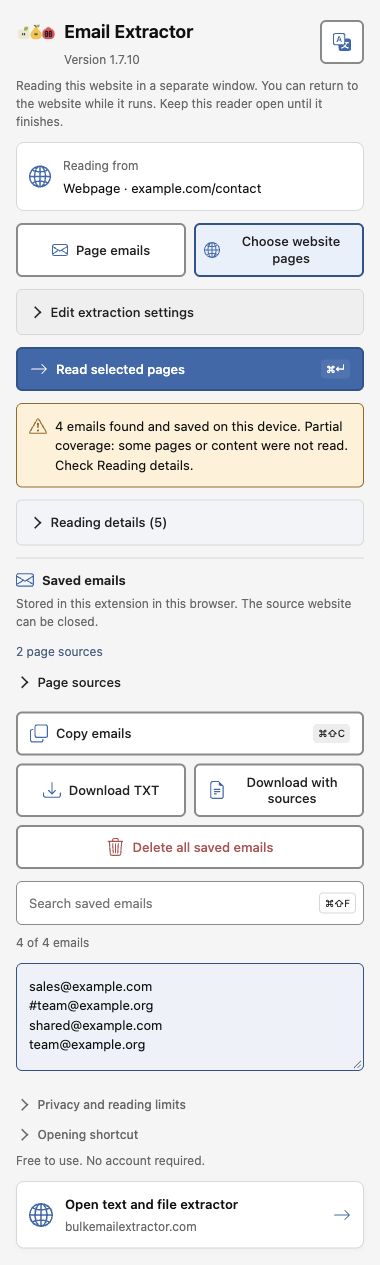
Read, copy, search and stop show their keys beside the controls. The popup’s Opening shortcut section explains only how to open it and handle conflicts.
⇧ means Shift, ↵ means Enter and ⎋ means Escape. The read, copy, search and stop shortcuts work while the popup or reader is focused. Use Tab to move between controls and arrow keys to switch the two mode tabs.
If the opening shortcut is already used, assign one in chrome://extensions/shortcuts or edge://extensions/shortcuts.
Using the main website? See the text and file guide or public webpage guide.
Saved emails, source URLs and page titles stay in this extension in this browser until you delete them. Original page content is not saved. Extracted results are not sent to our server.
Page and sheet requests go to the website being read and may use your existing signed-in session. The extension does not collect cookie values or browsing history, reveal restricted fields or bypass website restrictions. See our Privacy policy.
To update, download and unzip the new build, replace the extension folder, then click Reload on the browser’s extensions page. To uninstall, choose Remove on that page. Download saved emails before uninstalling if you want to keep them.
Check address validity before using your list.
Verifies email lists and provides tools for monitoring deliverability.
Useful when list cleaning and sender health belong in one workflow.
Explore ZeroBounce (opens in a new tab)Provides email verification for uploaded lists and connected workflows.
Useful for reviewing contact lists before a campaign.
Explore Bouncer (opens in a new tab)Provides email verification and tools for improving lead data quality.
Explore Clearout (opens in a new tab)Send newsletters and campaigns to people who opted in.
Create newsletters with publishing and audience growth tools.
Useful for publishers building a newsletter business.
Visit beehiiv (opens in a new tab)Add forms, landing pages and booking tools for new enquiries.
Create landing pages for campaigns and lead capture.
Useful when campaigns need dedicated enquiry pages.
Visit Unbounce (opens in a new tab)Build one-page sites with contact and signup forms on Pro plans.
Useful for a small landing page centered on one enquiry action.
Visit Carrd (opens in a new tab)